Click your name at the top left of the Personal Menu (in mobile version then click Profile) and under “My Settings” select “Wireless Network”. Then click “Show my network secret” to see your eduroam account details.
Visit
cat.eduroam.org
on your device to download the installer for eduroam. Click on “download your eduroam installer”.
Choose “KTH Royal Institute of Technology”.
Download the custom installer file shown on the page and follow the instructions below that apply to your device.
For more information, click the blue i-button.
Mobile device
In order for the installation file for eduroam to open, the app
geteduroam
(Android 8 or higher)
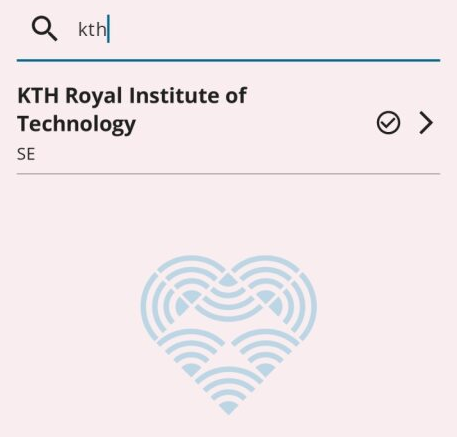
Start the app and select the organization "KTH Royal Institute of Technology"
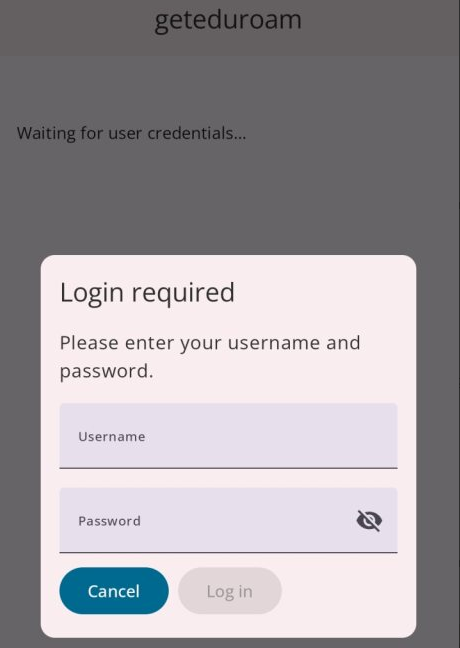
Username: Enter your username followed by @kth.se (example: testjp@kth.se)
Password: your personal Network secret
Choose Log In
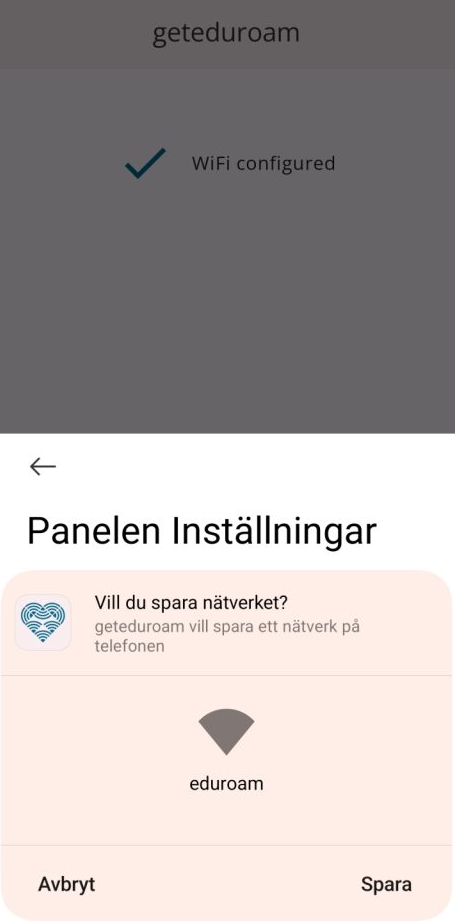
Select Save when asked "Do you want to save the network?"
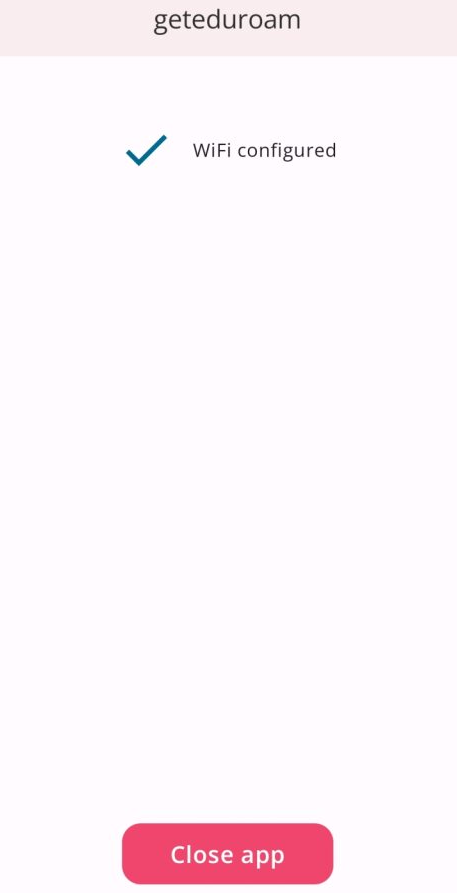
5. Finish the configuration by selecting Close app
After the installation file is downloaded from
cat.eduroam.org
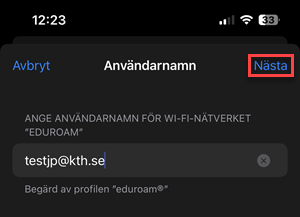
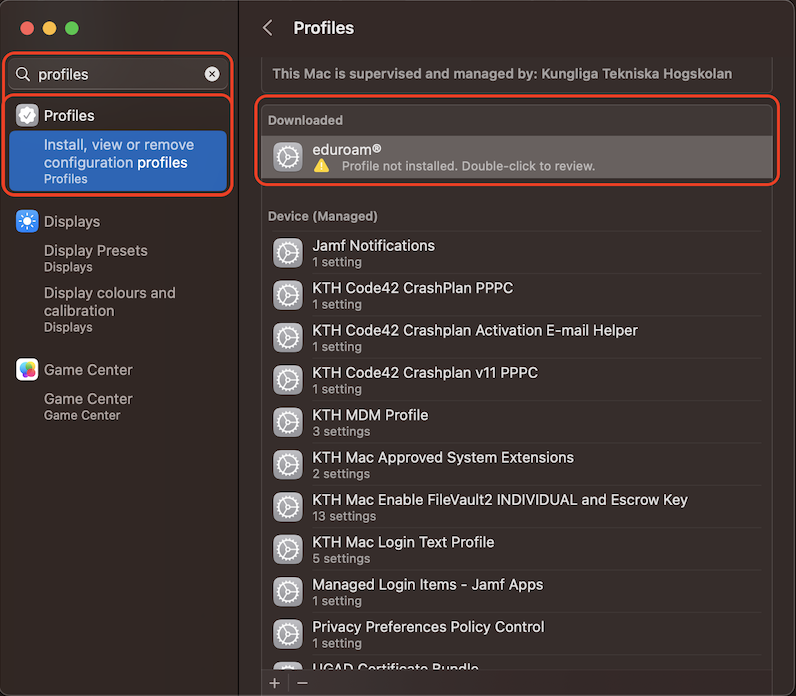
go to “Settings” in your iPhone or iPad and click “Profile Downloaded” and choose to install the profile.
Enter your device passcode. Then select “Install” twice.
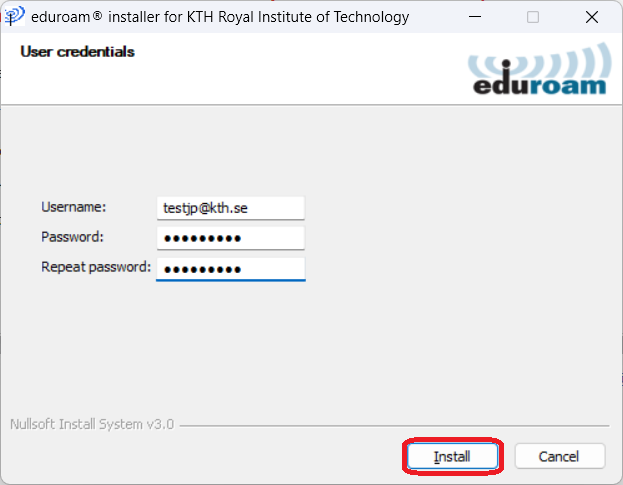
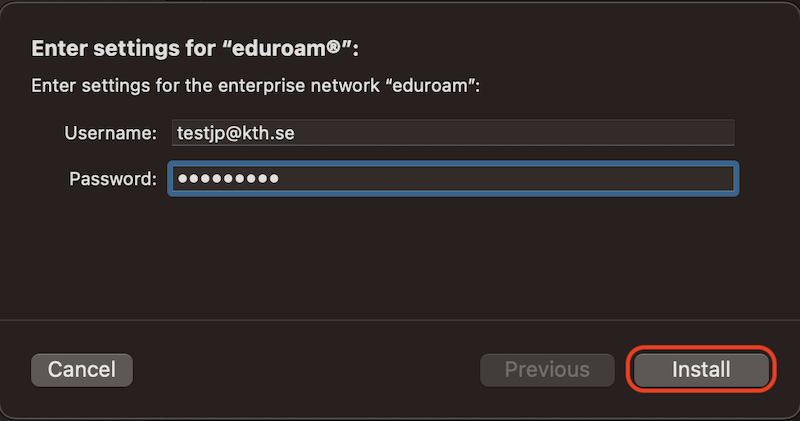
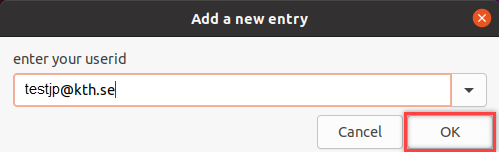
Userid: Enter your userid followed by @kth.se (example: testjp@kth.se)
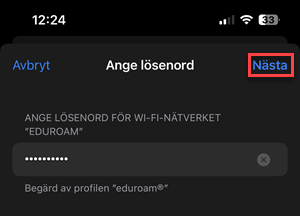
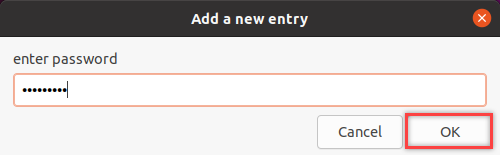
enter password: your personal Network secret
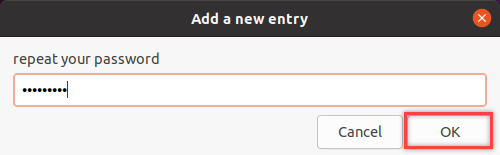
repeat your password: your personal Network secret again
Click “OK” on the “Information” prompt
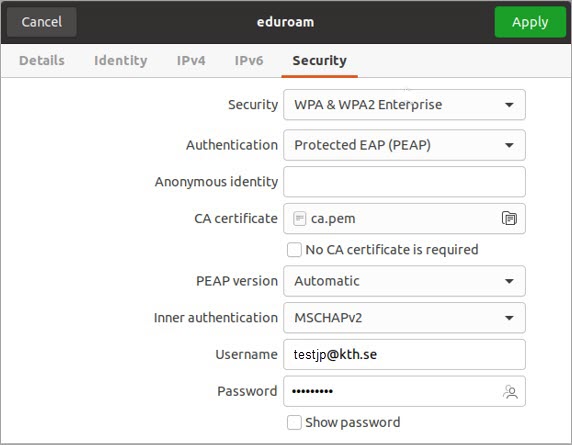
Go to Settings on your computer and select “Wi-Fi”. Then select “eduroam” and click on the “Security” tab to verify the following eduroam security settings:
Security: WPA & WPA2 Enterprise
Authentication: Protected EAP (PEAP)
CA certificate: ca.pem
PEAP Version: Automatic
Inner authentication: MSCHAPv2
Username: your own username@kth.se
Password: your personal Network secret
Connect to eduroam from the list of wireless networks.
Open
chrome://network/
in Google Chrome and choose to”Import ONC file”. Select the installation file that was downloaded from
cat.eduroam.org
Click on the network icon for the list of available wireless networks and select “eduroam”